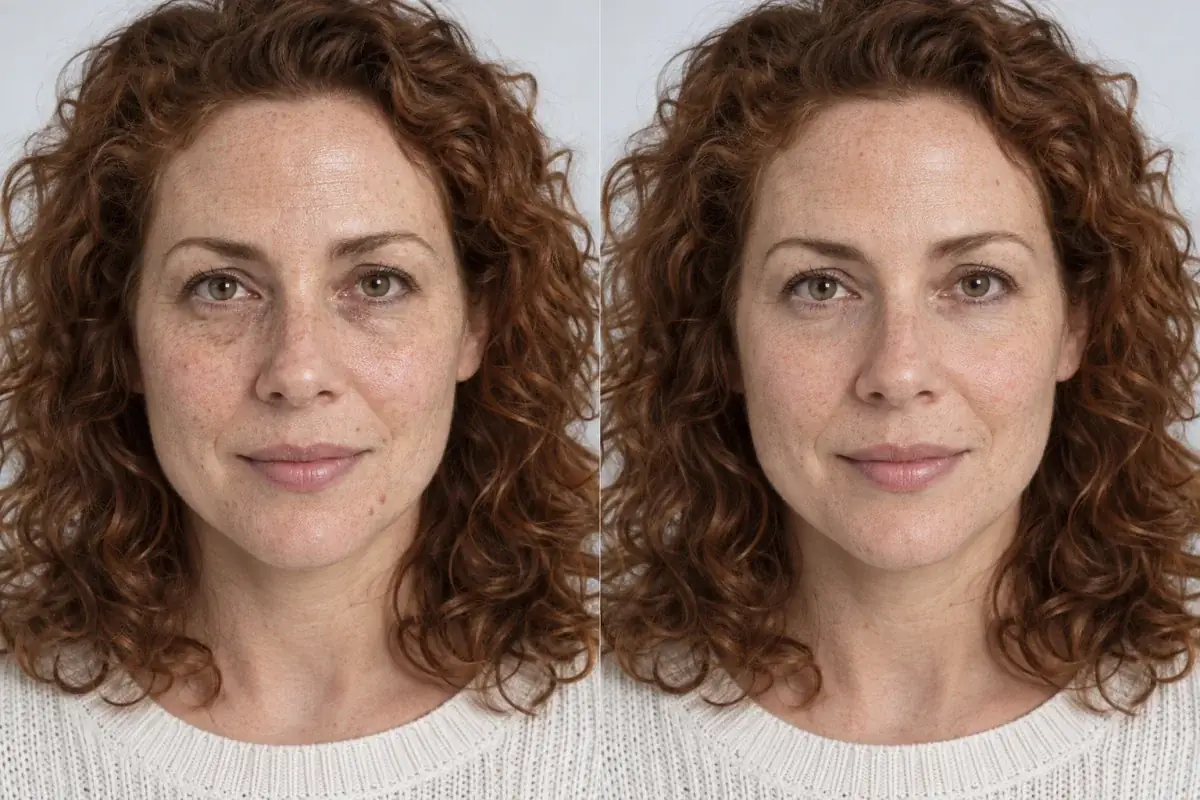
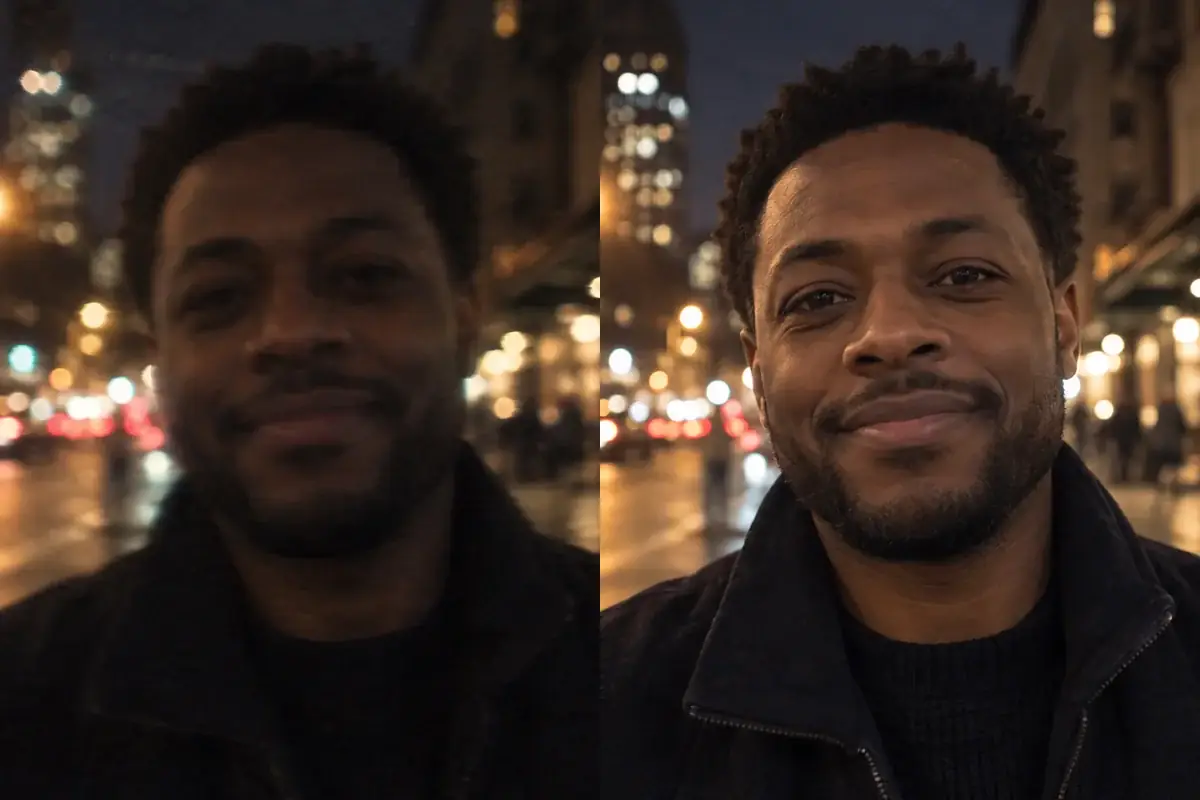
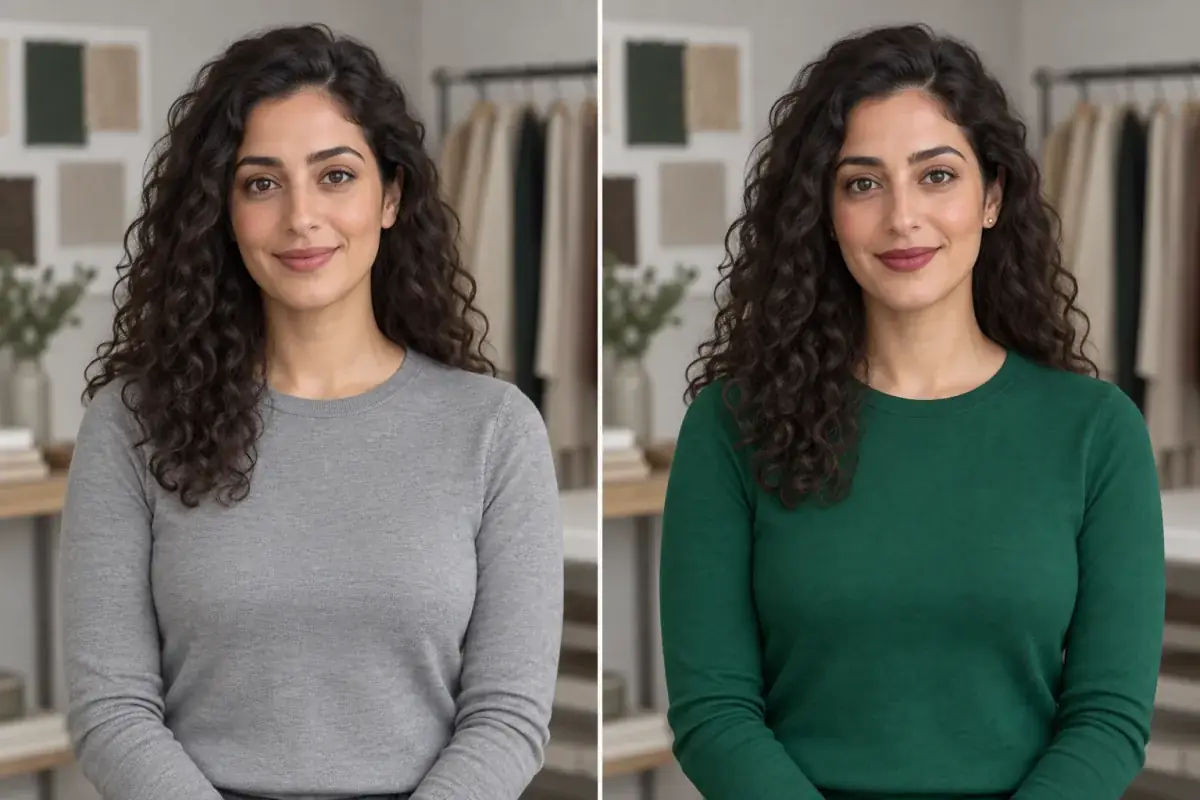
How to remove flyaway hair from a photo without losing texture
You like the photo. You just want to tidy a few hairs. Here is how to choose an editing method, keep the texture you like, and spot when an edit has gone too far.
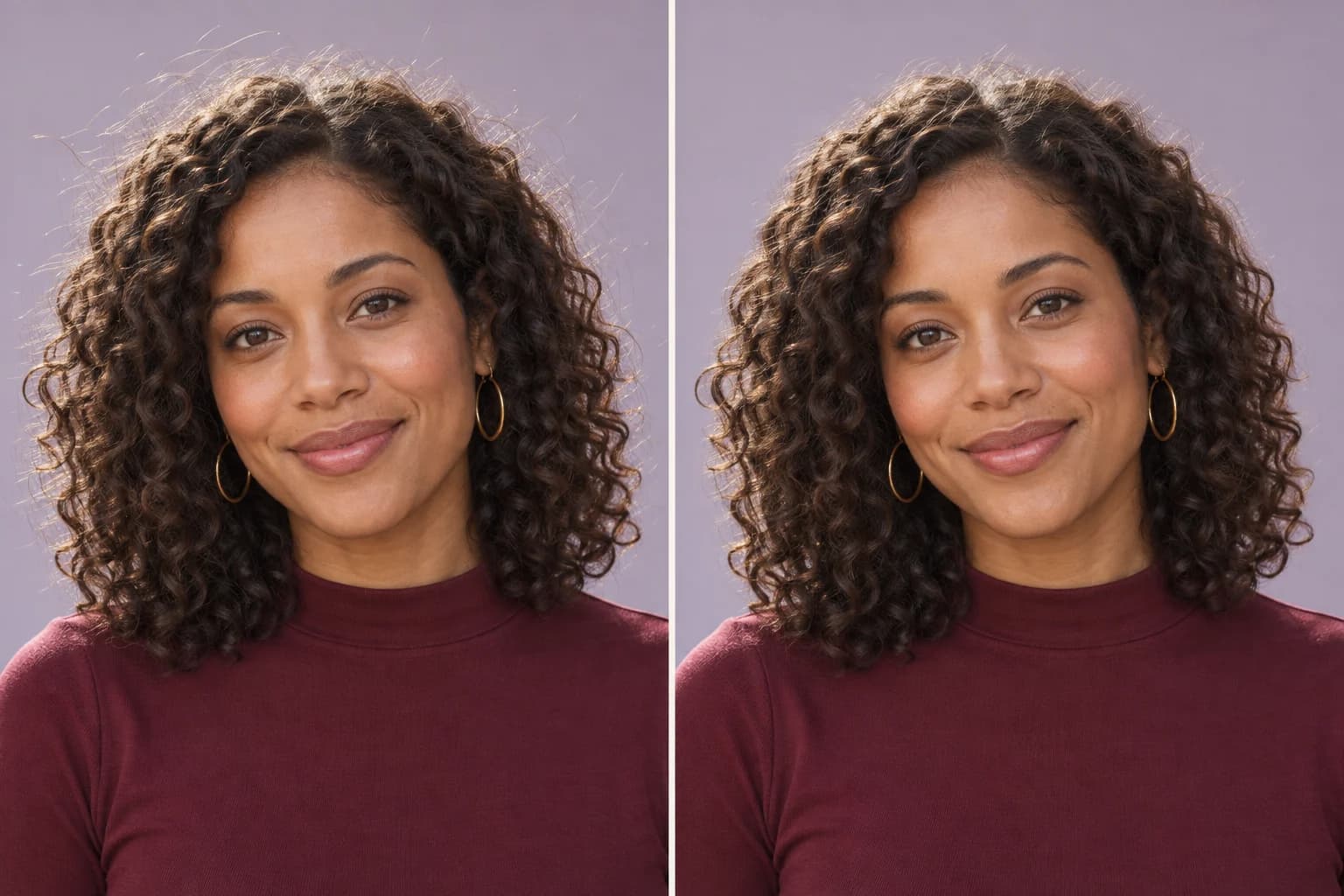
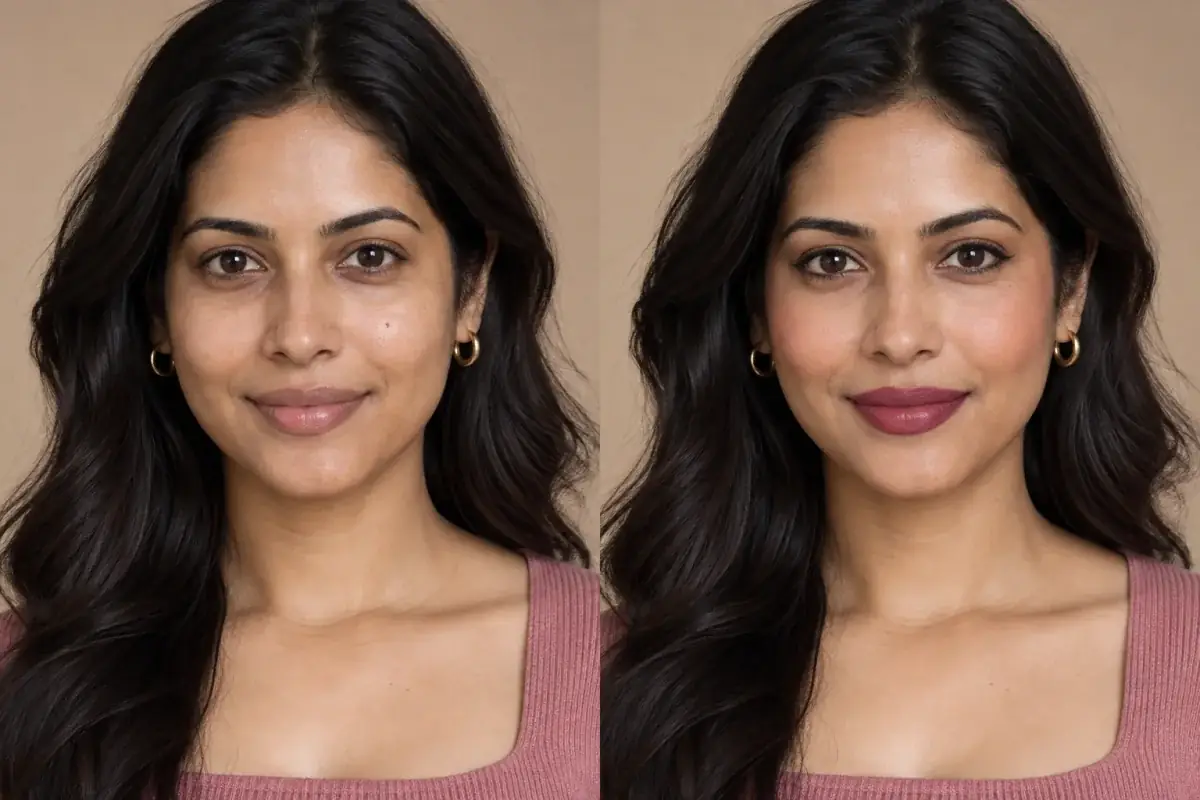
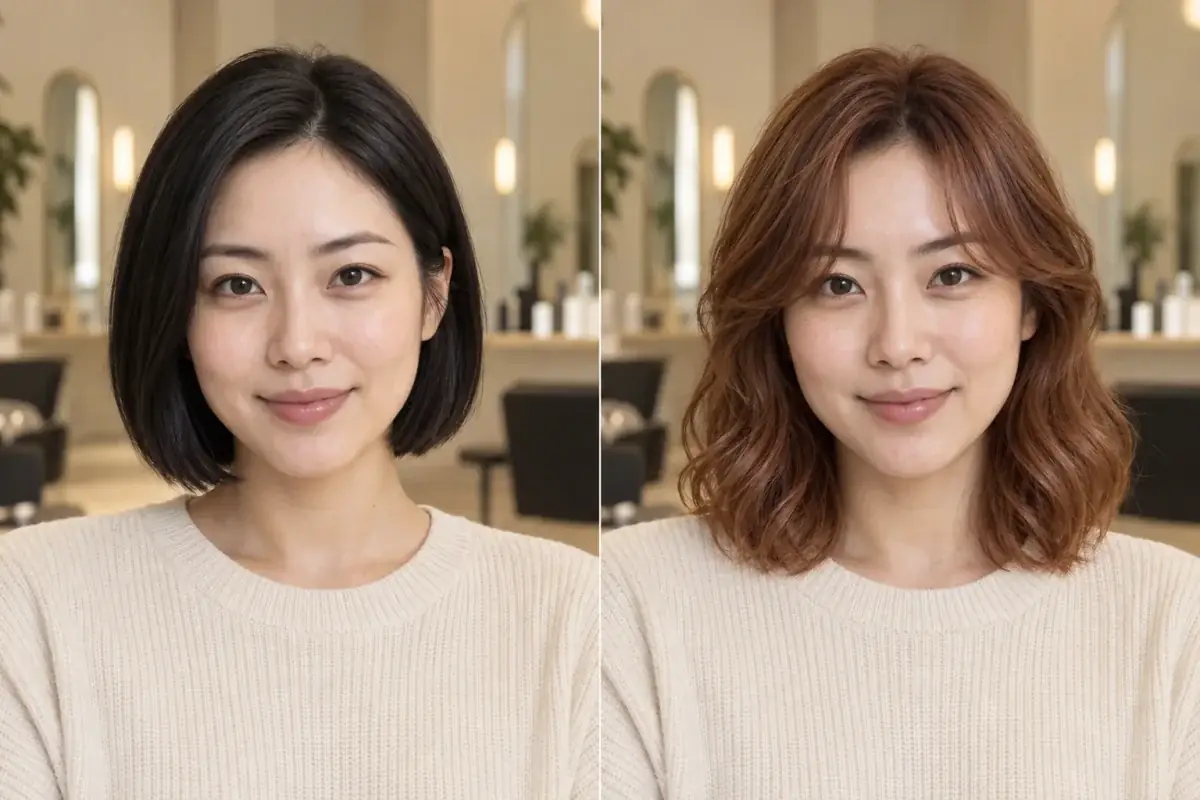
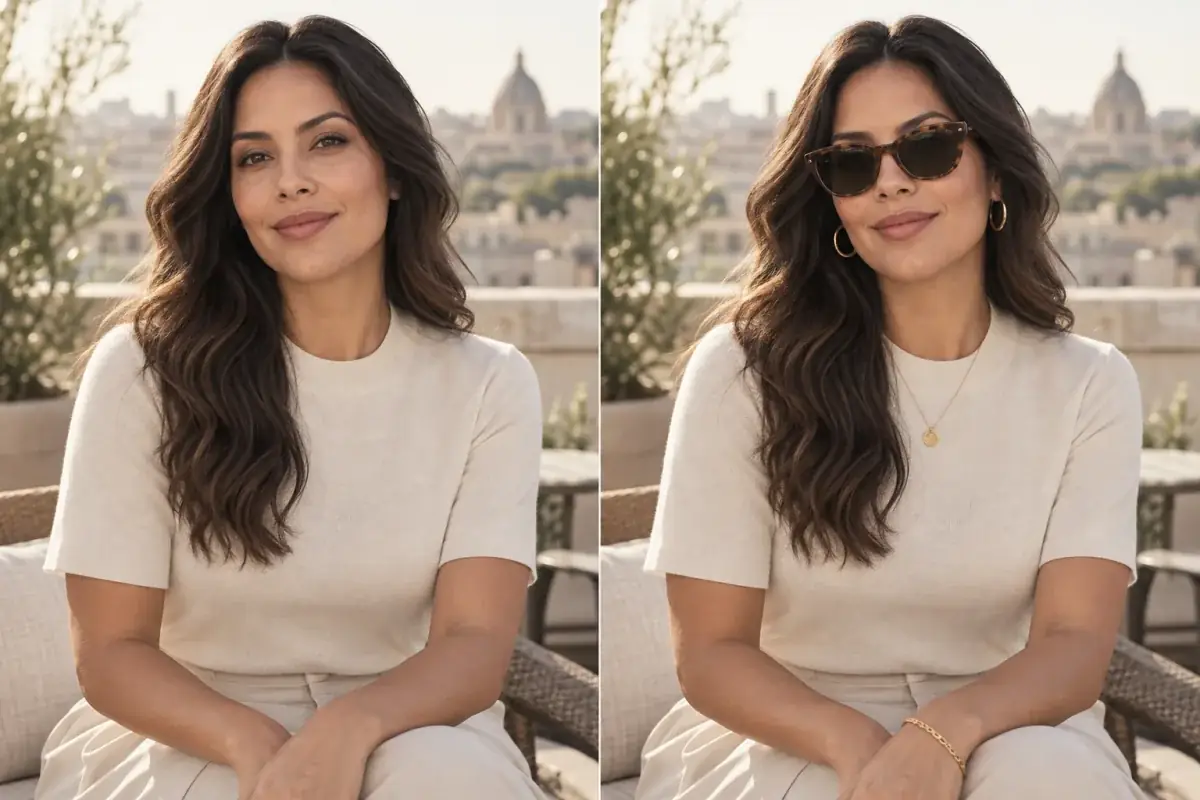
AI-generated illustration: fewer isolated strands on the right, with curls and volume retained. This is a concept comparison, not a measured Uptone result.
The quick answer
To remove flyaway hair from a photo, use a dedicated stray-hair editor or a small retouching brush on the individual strands you want to change. Keep the original beside the result and check the hairline, curl pattern and background before saving. The aim is a selective tidy, not a new hairstyle.
For an everyday portrait, start with the few strands that draw your eye away from the face. You do not need to remove every fine hair around the outline. A little irregularity helps hair look like hair.
First, decide whether you mean flyaways or frizz
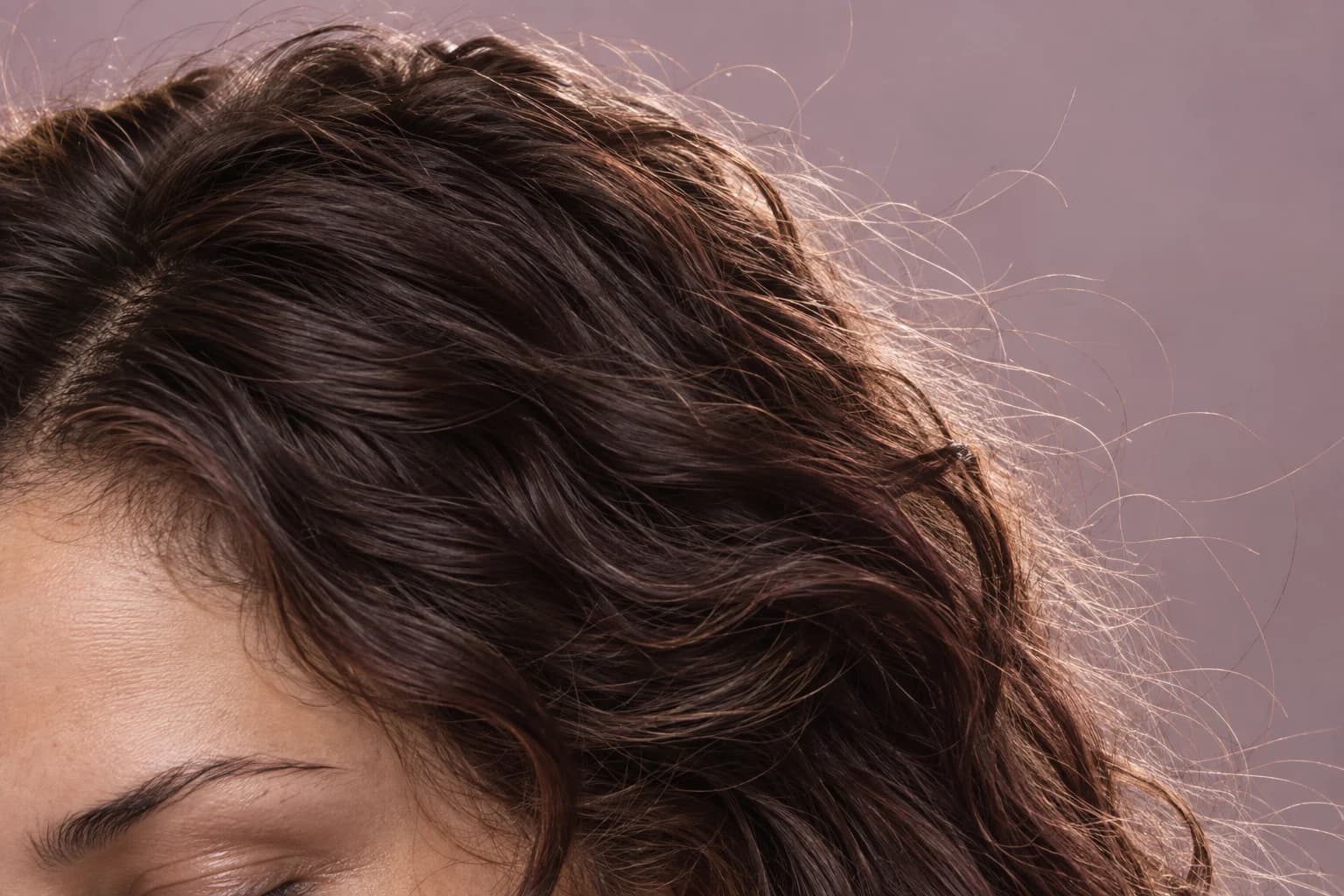
People searching for “remove hair frizz from picture” can be asking for two different edits. One is to remove isolated strands sticking out against the background. The other is to smooth the texture throughout the hair. Those changes will produce very different results.
If you want to keep your curls or waves, choose the first approach. An edit that removes all the fine texture between curls can also reduce their volume and separation. The photograph may look tidier at a glance while no longer showing the hairstyle you liked.
- A few hairs above the crown: a focused flyaway edit is a sensible starting point.
- A single strand crossing a cheek or patterned background: a small manual edit may give you more control.
- Soft texture throughout curls, coils or waves: decide how much you want to keep before editing.
- A different cut, colour or overall shape: use a hairstyle preview rather than asking a flyaway remover to restyle the photo.
How to edit flyaway hair with Uptone
Open Uptone's flyaway hair remover and upload the portrait you want to edit. Start with the original camera file if you have it; a screenshot or repeatedly saved copy may make individual strands harder to distinguish.
The tool is designed to tidy hairs outside the style while preserving the haircut, colour, texture, hairline and overall shape. That is the intended boundary of the edit, not a reason to skip checking the result.
Compare the preview with the original. Look first at the whole portrait, then at the crown, temples and background near the hair. Keep the version only if the change matches what you wanted. If a curl or face-framing strand you liked has disappeared, retain the original rather than accepting an edit simply because it is smoother.
How to remove individual stray hairs manually
For precise control in Photoshop, Adobe describes using the Spot Healing Brush or Healing Brush for stray hairs, and Clone Stamp when you need to copy suitable surrounding detail. Work on a duplicate layer so the original remains available.
- Select the duplicate layer and choose the Spot Healing Brush.
- Begin with a small click or short stroke over one strand, then inspect the result before painting over more.
- Where healing smears a patterned background or nearby detail, undo and consider Clone Stamp with an appropriate source area.
- Compare the edited layer with the original before exporting.
Keep curls, baby hairs and the hairline you started with
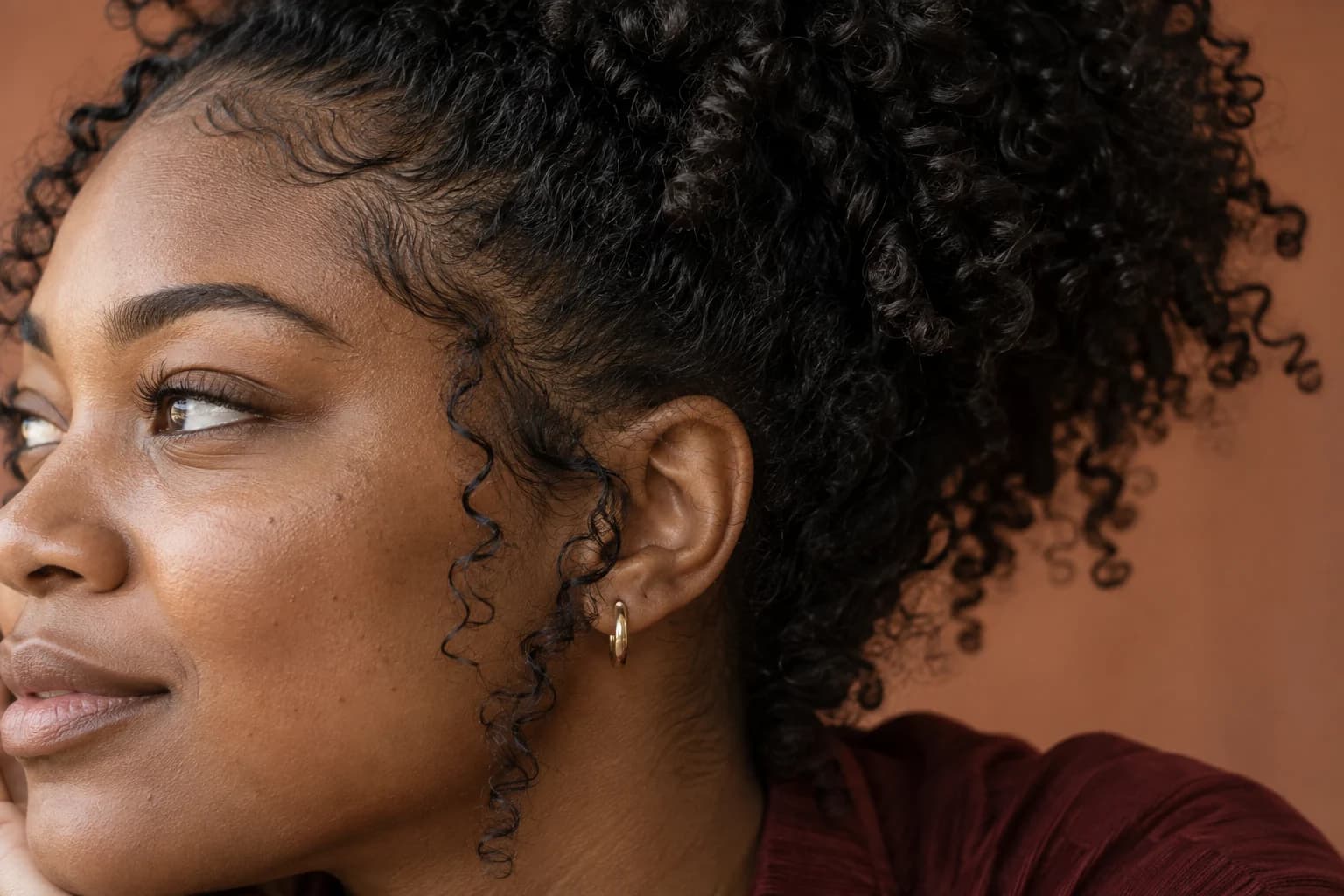
A strand at the edge of a curl may be part of the curl's shape. A short hair near the temple may be part of the look you styled. Neither has to disappear just because an editor can remove it.
Choose a few landmarks before you begin: the parting, the curve at each temple, the outermost curl you want to keep, and the overall width of the hair. Compare those same places afterwards. If the parting moves, the forehead appears larger or the hair looks noticeably narrower, the result has changed more than stray strands.
For a loose bun, keep the face-framing pieces that make it feel relaxed. For a headshot, check that the crown still has the same shape. For an event photo, keep the softness you chose when styling it. There is no universal number of hairs that makes a picture look right.
Check the background as carefully as the hair
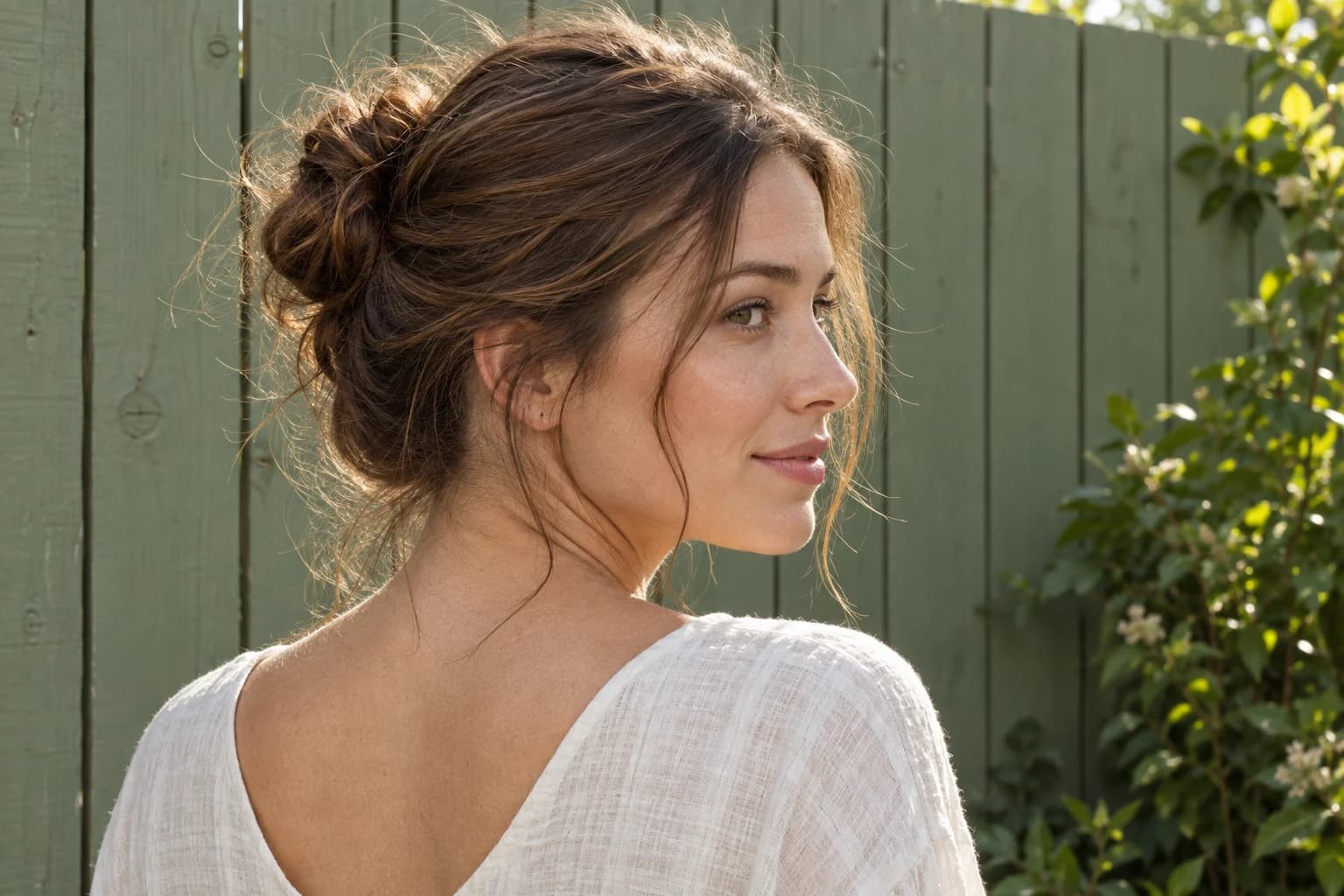
Removing a strand means replacing the pixels it occupied. A plain wall gives you a simple area to inspect. Leaves, railings, patterned wallpaper and other people's faces give you more edges and textures to check.
After the edit, look for repeated patches, bent lines or a soft band around the head. These can be easier to notice when you switch quickly between the original and the result. If one area looks smeared, keep that strand or try a smaller local edit instead of smoothing the whole outline.
A backlit portrait may also have a bright rim around the hair. Removing every lit strand can change the feel of that light, so inspect the whole photograph as well as the close-up.
What makes a good flyaway hair editor?
The useful comparison is how much of your photo the tool leaves alone. An app that gives a striking transformation may be the wrong choice when you only wanted a few strands tidied.
For a quick portrait edit, a dedicated AI tool can be a convenient place to start. For a strand crossing an eye, jewellery or a detailed pattern, manual control is worth considering. Neither approach makes the review step optional.
- Does the result keep your hairline, parting, curls and volume?
- Are the skin, clothing and background unchanged where no edit was needed?
- Can you compare with the original and keep an unedited copy?
- Are any download limits, watermarks or charges clear before you commit?
A final check before you save
Review the edit close up, then at the size someone will actually see it: a profile photo, a social post or a full portrait. A change that looks necessary when heavily zoomed in may be invisible in the finished picture.
Keep both files. If you return to the edited version later and the hair feels too smooth, you should be able to go back to the photograph you liked in the first place.
This changes a photograph, not your hair
Flyaway editing does not predict a salon treatment or change how hair behaves in humidity. It is an optional photo edit. If keeping every strand better captures the moment, the original is a perfectly good result.
Take the theory out of it.
Start with your own portrait and preview a selective tidy. Compare the hairline, texture and background before deciding whether to keep it.
Questions people ask
How do I remove stray hair from a photo?
Use a dedicated flyaway hair editor for a selective tidy, or a small manual retouching brush for individual strands. Compare with the original and check the hairline and surrounding background before saving.
Can I remove hair frizz from a picture without straightening my curls?
You can target isolated strands around the hairstyle while leaving the curl pattern alone. Removing texture throughout the hair is a different edit and can change its volume and shape. Inspect the preview to make sure the curls you wanted to keep are still there.
What is the best app to remove flyaway hair?
Choose by the result you need. A dedicated tool such as Uptone is designed for a quick selective tidy; a manual editor offers more control over individual strands. Compare preservation of hair texture and background detail, rather than judging only how smooth the result looks.
Can I edit flyaway hair on my phone?
You can open Uptone's flyaway hair remover in your phone browser and upload a portrait. Review the whole image as well as zoomed-in details; a small screen can make subtle changes around the hairline easy to miss.
Why does my hair look cut out after editing?
The edit may have removed too much fine texture around the outline or softened the background next to it. Compare with the original, preserve some natural edge detail, and undo areas where the hairstyle has become narrower or unnaturally uniform.
Will a flyaway editor change my hairline?
A focused flyaway edit should aim to leave the hairline alone. Uptone is designed to preserve it, but generated results still need review. If the parting, temple shape or forehead boundary has changed, keep the original or use a more local edit.